Remote Interview Guide: 8 Tips to Stand Out in Virtual Interviews
Master 8 core tips for remote interviews, from equipment setup to on-camera presence, helping you overcome the unique challenges of virtual interviews and stand out.
The Remote Interview Era: Are You Ready?
Remote interviews have become one of the mainstream hiring methods. Whether for initial screening or final rounds, more companies are choosing to conduct interviews via video conferencing. However, remote interviews differ significantly from in-person ones—network latency, on-camera presence, and environmental distractions can all affect your performance. If you are still approaching virtual interviews with an in-person mindset, you may be losing points without realizing it.
This article compiles 8 core remote interview tips, covering equipment setup, environment arrangement, camera presence, pace control, and more—helping you present your best self and stand out in virtual interviews.
Tip 1: Equipment and Network Pre-Check Checklist
The first hurdle in a remote interview is not your communication skills—it is your equipment and network. A single lag or disconnection can ruin your first impression. A thorough pre-check of your equipment and network is the most fundamental and important preparation for any remote interview.
Step-by-Step Actions
- Camera test: Open the video preview in your interview software. Confirm the image is clear, without artifacts or obstructions. If needed, an external USB HD camera outperforms most built-in laptop cameras.
- Microphone test: Record a 30-second voice clip and play it back. Check that the volume is appropriate and free of static or echo. A noise-canceling headset is recommended.
- Network stability check: Use an online speed test tool to measure upload and download speeds. Ensure at least 2Mbps upload speed. Prefer a wired Ethernet connection over WiFi to avoid signal fluctuations.
- Software installation and account test: Install the interview software (e.g., Zoom, Google Meet, Microsoft Teams) in advance. Complete login and grant permissions. Confirm you can join a test meeting.
- Prepare backup options: Set up your phone's mobile hotspot as a network backup. Install the interview app on your phone as a device backup, ensuring a quick switch if your primary device fails.
Key reminder: Complete all pre-checks at least 24 hours before the interview to allow time for troubleshooting.
Tip 2: Lighting and Background Setup
In a remote interview, the interviewer's first visual impression of you comes from the screen. Poor lighting makes you look tired and dull; a cluttered background appears unprofessional. Spending 10 minutes on lighting and background can significantly improve your on-screen quality.
Step-by-Step Actions
- Main light placement: Position your main light source slightly above and in front of you (e.g., a desk lamp), so light falls evenly on your face. Never sit with your back to a window or bright light source—this turns you into a silhouette.
- Fill light adjustment: If one side of your face is darker, add a soft fill light on the dark side, or use a white surface to bounce light.
- Color temperature: Use natural white light at 4000K–5000K. Avoid warm yellow light (makes you look tired) or cool white light (makes you look pale).
- Background cleanup: Choose a clean, simple wall as your background. Remove clutter, clothing, and personal items. If you cannot tidy the background, use a virtual background.
- Preview your frame: Turn on the camera and review the overall image from the interviewer's perspective. Confirm the lighting looks natural, the background is tidy, and there are no reflective objects causing glare.
Key reminder: Virtual backgrounds are convenient but may have unnatural edge detection. A real, clean background is preferable.
Tip 3: Camera Position and Eye Contact
The most overlooked detail in remote interviews is eye contact. When you look at the interviewer's image on screen, they see you looking downward—because you are not looking at the camera. This "eye contact mismatch" makes you appear distracted or lacking confidence.
Step-by-Step Actions
- Adjust camera height: Position the camera at eye level or slightly above for a natural, level angle. Avoid looking down at the camera (makes you look small) or up at it (feels intimidating).
- Laptop users: use a stand: Elevate your laptop screen with a stand or books, and use an external keyboard and mouse for comfortable typing.
- Practice "look at the lens": When answering questions, focus your gaze on the camera, not the screen. Place a small marker next to the camera as a visual anchor.
- Distribute your gaze wisely: You do not need to stare at the lens the entire time. It is fine to look away briefly when thinking, but always look directly at the camera when making key points.
- Optimize your framing: Keep your head in the top third of the frame. Show your shoulders and upper chest. Leave some headroom above—avoid "giant head" or "half face" compositions.
Key reminder: Before the interview, record a short video of yourself answering a question. Play it back to check your eye contact and framing.
Tip 4: Audio Optimization and Noise Reduction
In remote interviews, audio quality matters even more than video quality. Interviewers can tolerate occasional video blur, but if your voice cuts in and out or is drowned out by noise, communication breaks down. Optimizing audio is essential for delivering your message clearly.
Step-by-Step Actions
- Choose the right microphone: Prefer a headset with a dedicated microphone over a laptop's built-in mic, which picks up keyboard clicks and ambient noise.
- Enable software noise reduction: Most interview platforms have built-in noise cancellation (e.g., Zoom's "Original Sound" mode, Google Meet's noise reduction). Make sure it is turned on before the interview.
- Eliminate ambient noise sources: Turn off air conditioning, fans, and windows before the interview. Silence your phone. Inform family or roommates to stay quiet, and keep pets in another room.
- Adjust microphone distance: Keep the mic about a fist's width from your mouth. Too close causes popping; too far makes your voice sound thin. Maintain a moderately loud, consistent volume.
- Test for echo: Using speakers often causes echo. Wear headphones throughout the interview to prevent echo and reduce noise.
Key reminder: If audio issues arise during the interview, do not pretend everything is fine. Politely say, "I'm sorry, the audio is a bit choppy—could you repeat that?" It is more professional than guessing.
Tip 5: Screen Sharing and Whiteboard Usage
For technical, design, and consulting roles, screen sharing and whiteboard features are frequently used in remote interviews. How smoothly you present your work, code, or ideas directly affects the interviewer's assessment of your professional ability. Clumsy screen sharing makes you appear unprepared.
Step-by-Step Actions
- Organize your desktop and files in advance: Close unrelated tabs, chat windows, and notification pop-ups. Place files you need to present on the desktop or in a dedicated folder. Make sure you can find and open them within 3 seconds.
- Practice the screen sharing workflow: Rehearse sharing your screen in the interview software, including choosing between sharing the entire screen or a single window, and how to switch between them.
- Rehearse whiteboard tools: If the interview may involve a whiteboard (e.g., algorithm problems, architecture diagrams), familiarize yourself with the pen, text, and eraser tools beforehand.
- Prepare a backup presentation method: Save screenshots of key work or code as images. If screen sharing fails, you can quickly send them via the chat window.
- Protect your privacy: Before sharing your screen, double-check the browser bookmarks bar, recent files list, and other areas to avoid leaking personal information or sensitive data from previous employers.
Key reminder: When screen sharing, the interviewer can see everything you do. Avoid switching to personal chats or unrelated pages during sharing.
Tip 6: Pacing in Remote Interviews
In remote interviews, communication pacing is harder to manage than in person. Network latency leads to talking over each other or awkward silences. Staring at a screen for long periods makes fatigue and distraction more likely. Taking control of the interview pace demonstrates communication skills and professionalism.
Step-by-Step Actions
- Allow a 1–2 second buffer: After the interviewer finishes a question, pause 1–2 seconds before responding. This avoids talking over them due to latency and gives you a moment to organize your thoughts.
- Use structured responses to control length: Answer with a "point–support–conclusion" or "first, second, third" structure. Keep each answer to 2–3 minutes—avoid long monologues that cause the interviewer to zone out.
- Confirm your understanding proactively: For complex questions, paraphrase first: "So you'd like to know about my experience with XX, is that correct?" This avoids answering the wrong question and buys thinking time.
- Stay engaged during the interviewer's turns: When the interviewer speaks at length, nod occasionally or offer brief verbal acknowledgments like "mm-hmm," "understood," or "I see" to show you are present and attentive.
- Guide the conversation back on track: If the interview drifts into small talk or off-topic areas, politely redirect: "By the way, regarding the XX requirement you mentioned earlier, I'd like to add one more point..."
Key reminder: Silence feels more awkward in remote interviews than in person. If you need time to think, say "That's a great question—let me think for a moment" to fill the gap.
Tip 7: Emergency Plans for Technical Failures
No matter how well you prepare, technical failures can strike during a remote interview. Disconnections, black screens, software crashes—what matters is not whether they happen, but how you handle them. Calm, professional crisis management can actually become a plus.
Step-by-Step Actions
- Plan for disconnections: Save the interviewer's phone number in your contacts in advance. If disconnected, immediately switch to your phone's mobile hotspot. If you cannot reconnect within 3 minutes, call to explain and request to rejoin.
- Handle software crashes: Install the same interview app on your phone and log in beforehand. If the desktop app crashes, join the meeting from your phone and say, "Sorry about the technical issue—let's continue."
- Deal with video lag: If the other party's video freezes, wait 10 seconds. If it persists, turn off your camera to free up bandwidth and continue the interview via audio only.
- Stay calm and professional: When problems occur, do not panic, do not complain about the technology, and do not over-apologize. Briefly explain the situation, switch to your backup plan, and continue.
- Follow up after a failure: In your thank-you email, briefly mention the technical issue and thank the interviewer for their patience—demonstrating your professionalism.
Key reminder: Make sure your phone is fully charged and your charger is within reach before the interview, so your backup plan is always ready.
Tip 8: Post-Remote Interview Follow-Up Strategy
Many job seekers think the interview is over once they log off, but follow-up after a remote interview is equally important. A well-crafted thank-you note reinforces the interviewer's impression and can compensate for any shortcomings during the interview. In a remote context, follow-up has its own unique strategies.
Step-by-Step Actions
- Send a thank-you note within 24 hours: Email the interviewer or HR within 24 hours. Include: thanks for their time, a restatement of your interest in the role, and one highlight you did not fully express during the interview.
- Reference specific topics from the interview: Mention a specific project or topic discussed, such as "I've been thinking further about the XX project you mentioned..." This shows thoughtfulness and depth.
- Share supplementary materials: If your portfolio or project examples came up, include links or files in the thank-you email so the interviewer can explore them further.
- Follow up at the right frequency: If you have not heard back after a week, send a brief follow-up email asking about the timeline. Never send multiple follow-ups or call repeatedly—remain professional and patient.
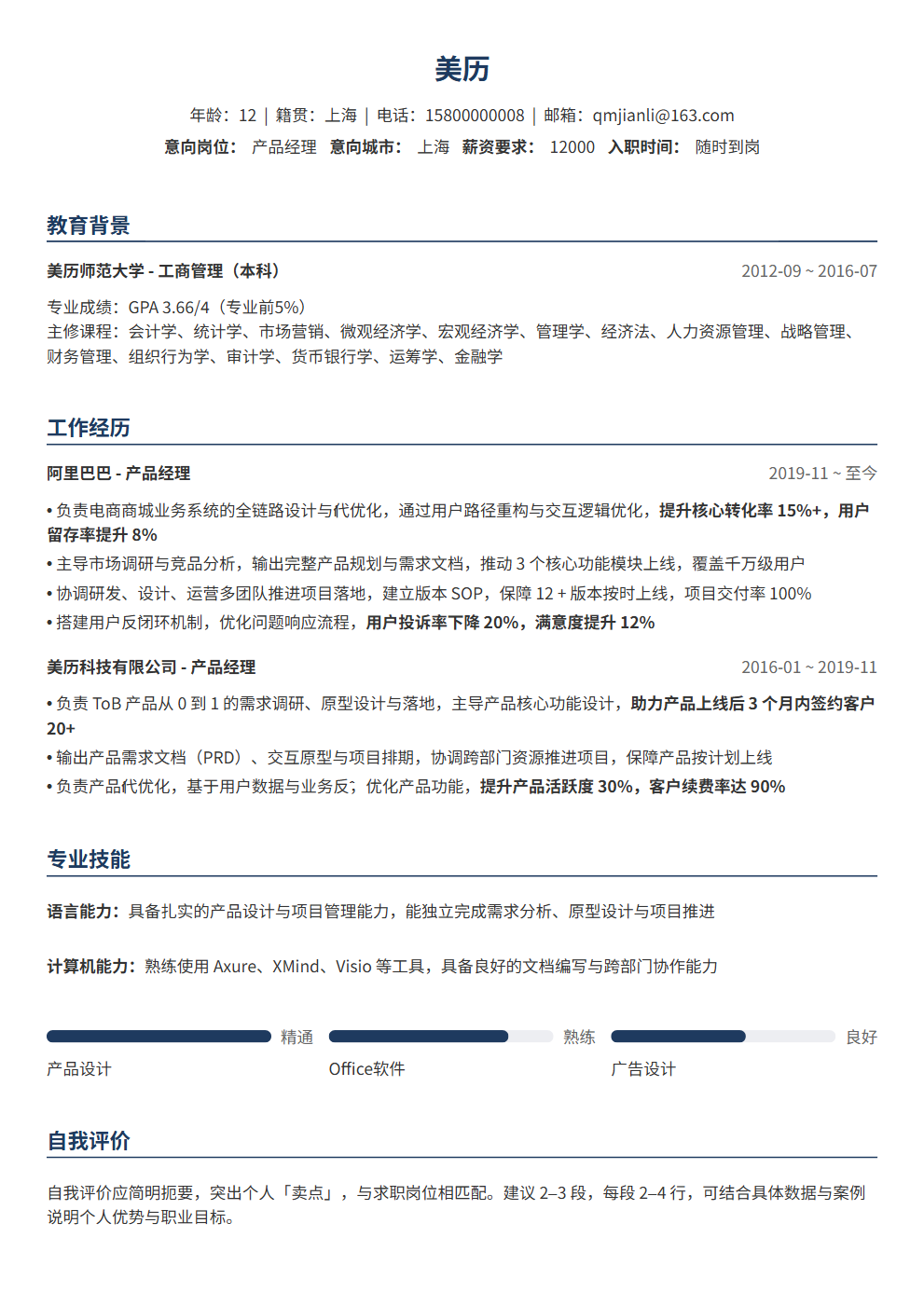
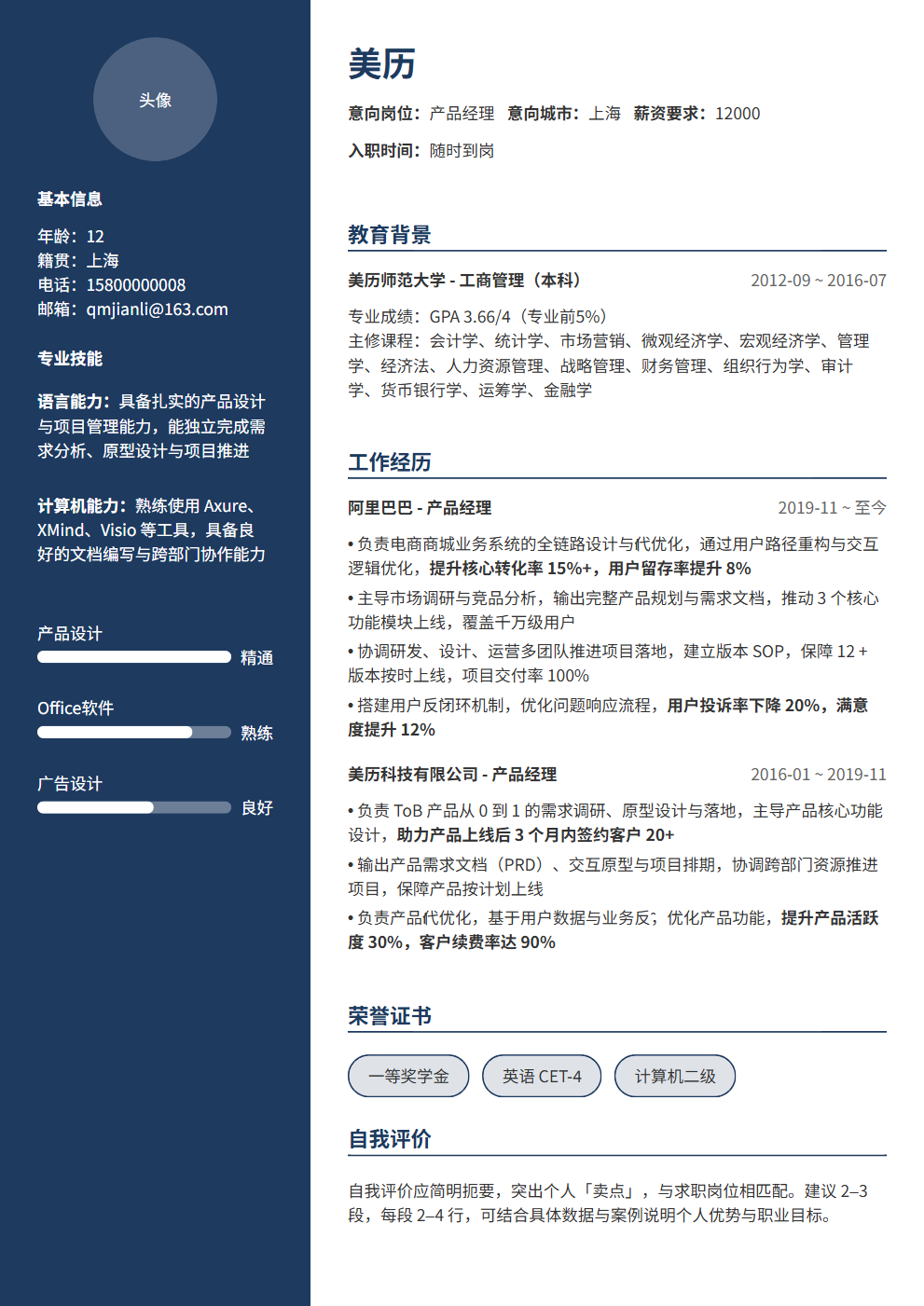
- Update your resume simultaneously: After the interview, refine your resume based on feedback. A resume generator can help you quickly adjust the format and emphasis, ensuring your resume is precisely tailored to the role for your next interview.
Key reminder: A thank-you note is not about reselling yourself—it is about demonstrating professionalism and ongoing reflection. Keep it to 3–5 sentences.
Remote Interview FAQ
What should I wear for a remote interview?
Dress to the same standard as an in-person interview. Even if only your upper body is visible, wear complete business attire or smart casual. Avoid the "professional top, pajama bottoms" mindset—it affects your overall energy. Solid dark colors work best on camera. Avoid thin stripes (they create moiré patterns) and overly bright colors.
Can I look at notes during a remote interview?
You may glance at notes occasionally, but do not read from a script the entire time. Prepare a small cue card and place it next to the camera—just a quick glance when needed. One advantage of remote interviews is the ability to use notes, but over-reliance makes you appear unprepared.
What if someone walks in during the interview?
Lock the door and inform family or roommates of your interview time in advance. If someone still walks in, stay calm, smile at the camera and say "Please excuse me for a moment," mute your mic, handle the situation, and return quickly. Briefly apologize and continue—do not over-explain or act embarrassed.
Are remote interviews harder than in-person ones?
Each has its challenges. Remote interviews test you with technical uncertainty, loss of non-verbal cues, and easier distraction. In-person interviews demand more on-the-spot adaptability and body language. The key is using targeted strategies to offset remote interview weaknesses while maximizing online advantages (like note access and environment control).
How can I tell if a remote interview went well?
Look for these signals: the interview ran over time (the interviewer was interested), they proactively shared team and project details, they asked about your availability, and the conversation felt natural and relaxed. However, wait for the official HR notification—follow up promptly after the interview.
Conclusion: Preparation Wins, Even Remotely
A remote interview is not a "downgraded" version of an in-person one—it is a format that requires entirely new strategies and specialized preparation. From equipment checks to camera presence, from pace control to failure recovery, every detail can be the difference between success and failure.
Remember these 8 core tips and check them off before your next remote interview. You will find that with sufficient preparation, online interviews can actually give you more advantages than in-person ones. After all, you can present your most professional self from the comfort of your own space.
Finally, do not forget to polish a precisely targeted resume with a resume generator before your interview—so your remote interview starts winning from the application stage.